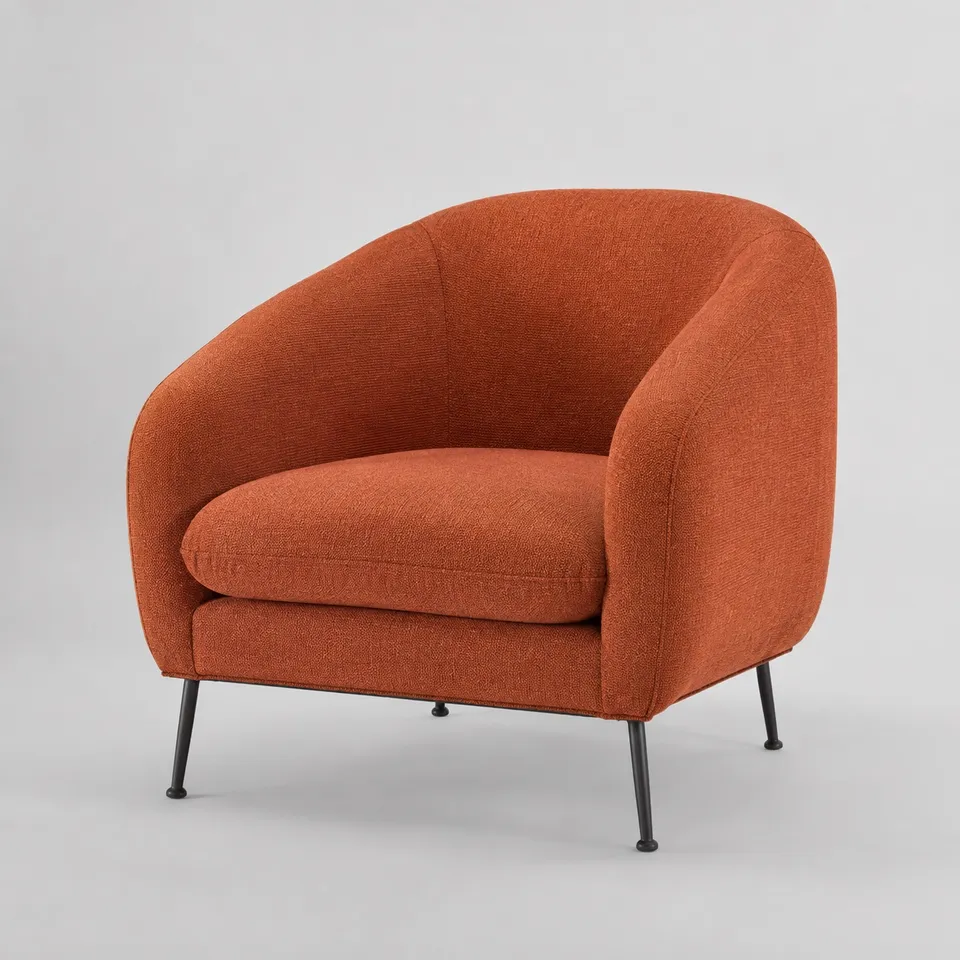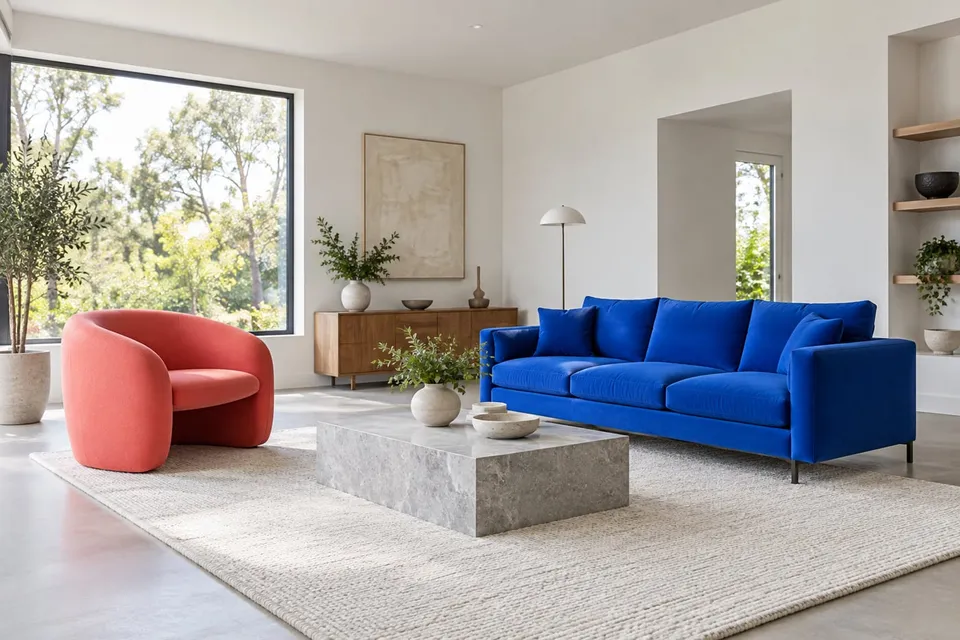
A new chair, the same room: preview furniture with purpose
Upload a furniture photo and a room photo to compare color and shape. Plan the view, mark out real dimensions and check generated scale carefully.
Read guideExplore how a picture’s colors and format relate to your wall and the furniture below it. Your own room photo gives the artwork a setting that a shop thumbnail cannot. Use the result to compare visual balance, then mark out the real frame dimensions before deciding where to hang it.
Show the whole product clearly. A sharp screenshot of the main product photo is enough.
Photograph the wall straight on, with nearby furniture or wall edges visible.
Creating a preview sends both images for AI processing. Privacy
Add a product photo to continue.
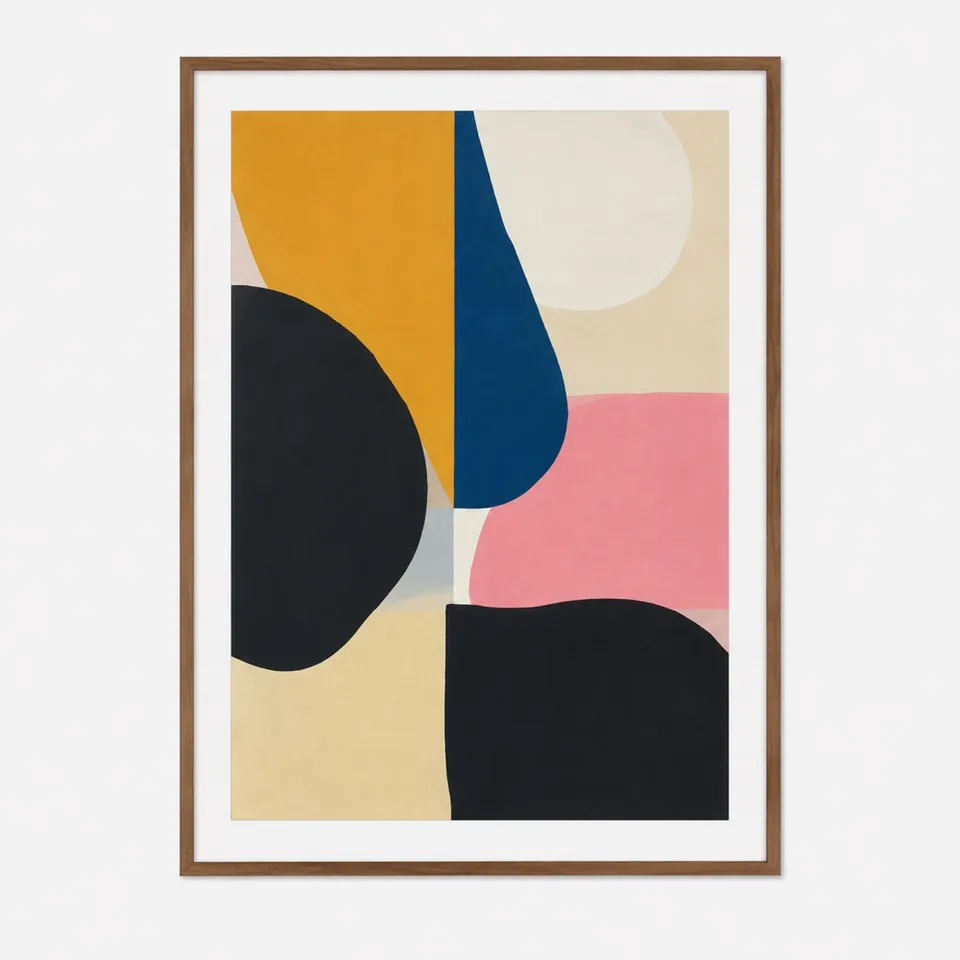
Compare a portrait format with a landscape format in the same room. Judge the overall balance, then verify the outer frame size and fixing position.
Try it freeNo guarantee of exact artwork, color or scale. Check frame dimensions, wall fixings and the original image before buying.
It can help explore a format, but does not establish exact dimensions. Mark the listed frame width and height on the wall with a removable outline.
Fine lines, lettering and composition may change in a generated image. Use the original product image to inspect the artwork itself.
Yes, with separate product images for the frame options. Keep the room photo constant and remember that screen colors and reflections vary.
Upload a furniture photo and a room photo to compare color and shape. Plan the view, mark out real dimensions and check generated scale carefully.
Read guideChoose the right product image, frame your body or room clearly and compare results without mistaking an AI preview for a measurement.
Read guideSave a permitted product photo, choose the right variant and crop screenshots cleanly. Upload it with your own photo for a more useful AI preview.
Read guide