Virtual try-on not working? Check uploads, cropping and preview errors
Find the stage that failed, check both uploads and the square crop, then follow the displayed error. A distorted preview needs different action from a connection failure.
Find the last step that worked
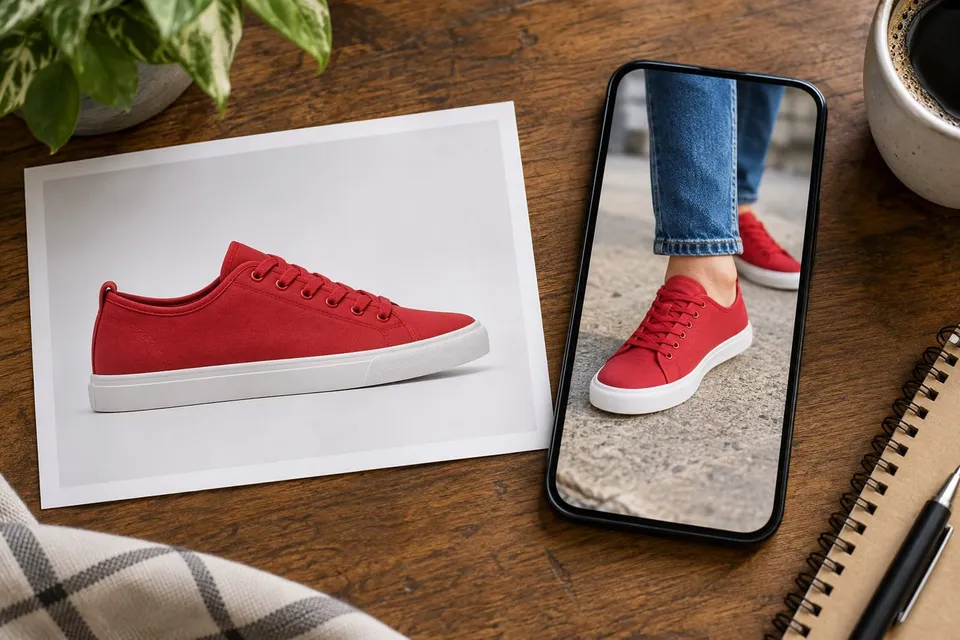
First identify whether you cannot add an image, cannot start generation or received an unsuitable result. These are different problems. VirtualTryOn needs an uploaded product photo and your own uploaded or camera photo, with its square crop confirmed. Check that both selected images are visible and the category matches the product. Read the message near the affected step before replacing everything. Keep any useful result saved before clearing photos or leaving the page; do not rely on the current session as an archive.
When an upload is rejected
Use a nonempty JPEG, PNG or WebP file up to the displayed 12 MB limit. A phone photo in another format needs to be exported or converted to a supported format; renaming its extension is not conversion. If the file is too large, export a smaller copy that still shows the relevant detail. If it cannot be opened, check that it opens on your device and try a fresh export. Add the product image to the product field and the person or room image to your photo field.
When the camera or crop blocks progress
If camera permission was denied, allow it in the browser's settings or upload an existing photo. If the camera is starting, wait until the capture control is ready. A camera photo still needs the square crop confirmed. In the crop dialog, reposition the image and adjust zoom so the relevant body area or floor space remains visible. If the square cannot contain what you need, take a wider photo. Canceling the dialog does not apply the new photo, and a crop error needs another attempt or a different image.
When the generate button is unavailable
Wait for image preparation or an active generation to finish. Check for a missing photo or unconfirmed crop. After a successful preview, unchanged inputs are marked as current; make a meaningful change to the product, your photo, category or optional request to create another version. Changing an input does not update the old image automatically. If the interface identifies it as a previous preview, generate the new version before judging your changes. A reached generation limit is a separate condition and cannot be fixed by recropping.
When generation fails or a limit appears
Follow the specific message: check your connection after an interruption, try later for a busy or temporarily unavailable service, and wait until the stated time for a daily limit. The session also limits generation attempts, so repeated clicks are not a useful diagnostic method. Clearing photos does not reset that counter. If the previous result remains visible, it is not proof that the latest attempt succeeded. Save it if useful, but associate it with the earlier inputs rather than the product you just selected.
When the image is wrong rather than missing
For example, a rug replacing a table or a sleeve merging into a hand calls for input review. Compare the originals, simplify an optional request and change one cause at a time. A result can remain unsuitable despite clearer inputs; stop when it cannot support the buying question.
- Is the entire product visible, with one unambiguous item and the intended variant?
- Does the square crop show the placement area, without hands, furniture or clothing hiding it?
- Did the result change your body, room geometry, product pattern or other essential details? Discard that comparison.
- Does sharing send only a page link? Save the image separately if you need the actual preview; sharing support varies by browser.
About this guide
Prepared with AI assistance by Focus Labs, the operator of VirtualTryOn.store. These guides explain the tool and practical purchase or integration checks; they are not independent product tests. External evidence is linked where used. Illustrations are AI-generated unless identified as product examples.